

Guide
Husvarde Guide
A step-by-step walkthrough of the app. For troubleshooting and FAQs, visit Support.
Getting Started
Husvarde has no account to create and no login screen — when you first open the app, you'll see a quick three-screen introduction to what it does, then you're straight into adding your first fixture.
There's nothing to sign up for and nothing tied to your identity. Your fixtures are stored on your device from the very first one you add.
Tap "Get Started" at the end of the intro, fill in a name and pick a category and type (Lighting → Bulb, HVAC → Aircon, and so on — or choose "Other" and type your own if nothing fits), and you're tracking your first fixture.
Choosing a language
Husvarde is available in English, Simplified Chinese, Japanese, Korean, German, French, Spanish, Portuguese (Brazil), Italian, Norwegian, and Filipino, and it uses the language your iPhone or iPad is set to. To use a different language just for Husvarde, open Settings, choose Apps, then Husvarde, and pick a language there.
Names and notes you type — fixtures, rooms, custom types — stay exactly as you wrote them; only Husvarde's own screens and messages are translated. The Home Screen widget and the permission prompts follow your device's language rather than the per-app setting.
Tracking Fixtures Without AR
Every feature that matters works completely without ever opening the camera. Add a fixture from the list, give it a location (building, level, room — these are free-text tags that autocomplete from what you've already typed, so your list stays organized as it grows), and you're set up to track it.
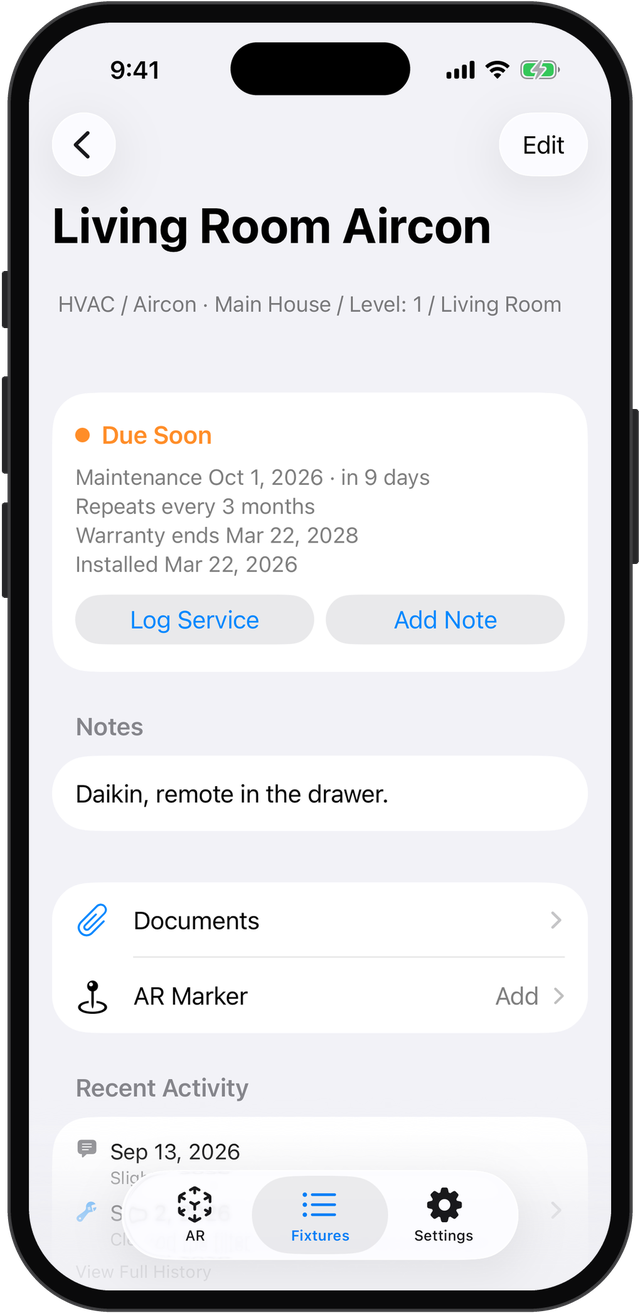
The top of a fixture's page is a status card: its status color and label, when maintenance is next due, and the buttons you'll use most. From there you can:
- Log a service — records what was done. On a fixture that doesn't repeat, this clears its maintenance date; on one that does, it sets the next date for you (see Repeating maintenance)
- Add a note — keeps a record without touching the maintenance schedule, useful for things like "noticed a flicker" that aren't a full service
- See its full history, searchable and grouped by month
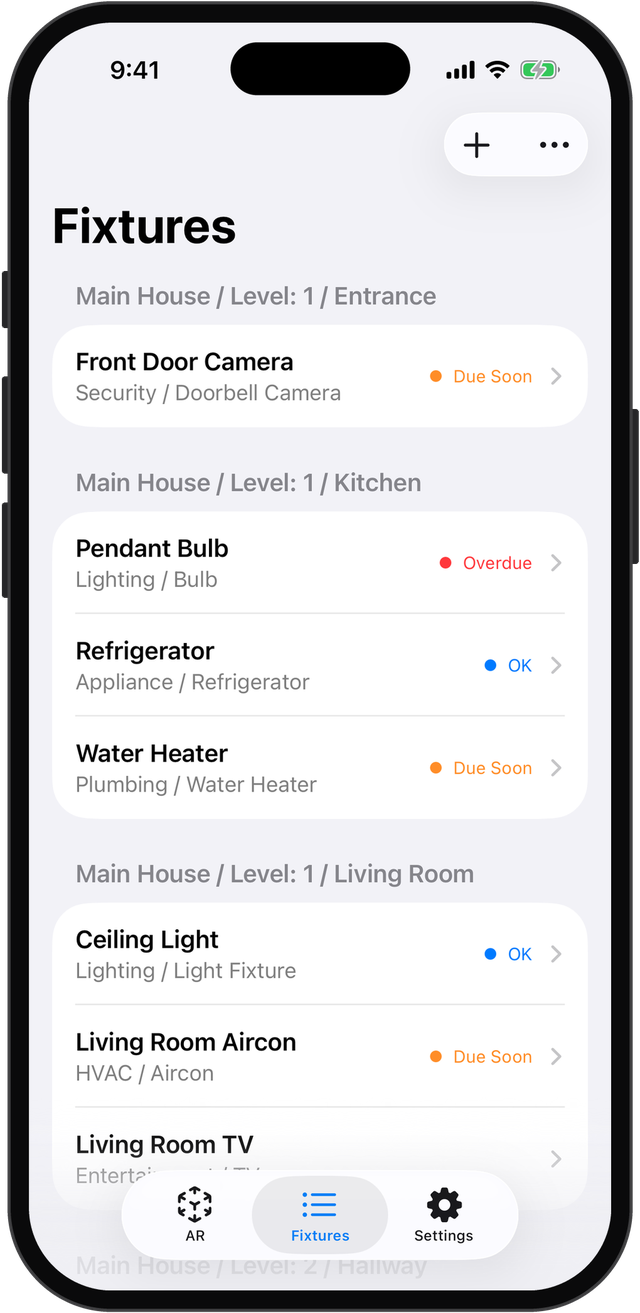
Every fixture shows a status at a glance — a color dot that's blue when it's fine, amber when service is coming up soon, red when it's overdue, or gray if no maintenance date is set yet. Group your list by room or by fixture type using the toggle at the top of the list.
- Overdue
- Due soon
- Upcoming Maintenance
- No due date
Tracking a warranty
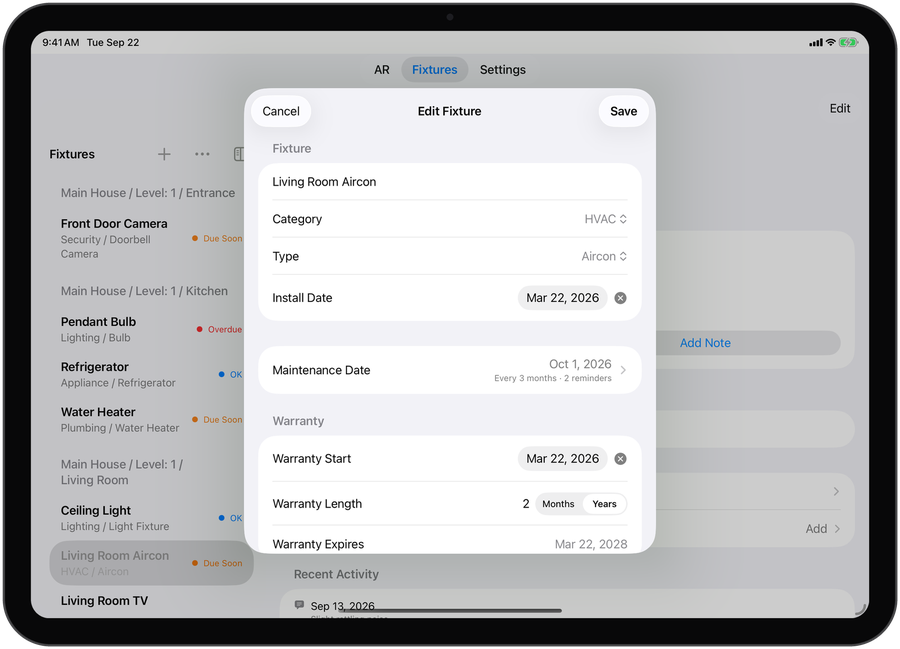
When you add or edit a fixture, you can record its warranty: the day it started and how long it lasts, in months or years. Husvarde works out when it ends and shows that on the fixture's page — including how many days are left as the end gets close, or that it has expired.
A warranty is a record for your own reference. It's separate from the maintenance date, so it doesn't change a fixture's status color or send a reminder. If you want a nudge before coverage ends, set a maintenance date and reminder for that day.
Attaching photos, videos, and documents
Keep the receipt, the warranty card, or a photo of the install with the fixture it belongs to. Open a fixture, tap Documents, then Attach Files, and choose from your Photos, take a new photo or short video with the camera, or pick a file from Files. Tap anything you've attached to preview it.
- Photos and documents can be up to 15 MB each
- Videos can be up to 50 MB and 15 seconds
- Documents can be PDFs, Word, Excel, or PowerPoint files, Pages, Numbers, or Keynote files, and plain text
Attachments are part of the one-time unlock (see Free vs. Unlocked). Once unlocked, they sync through your own iCloud account along with the rest of your fixture, and they're removed if you delete the fixture.
Clearing out a room
To remove every fixture tagged with a particular room at once, open the menu at the top of the fixture list and choose Delete by Room. Pick a room, review the fixtures that will be deleted, and confirm. This works from the room labels on your fixtures, so it needs no AR. If a scanned room has the same name, you can choose to delete that scan too — it's off by default, so you can keep the scan for tagging new fixtures later. Deleting can't be undone.
Setting Up AR Room Scanning (optional)
AR tagging is entirely optional — think of it as a bonus layer on top of the tracking you're already doing, not a separate thing you have to use.
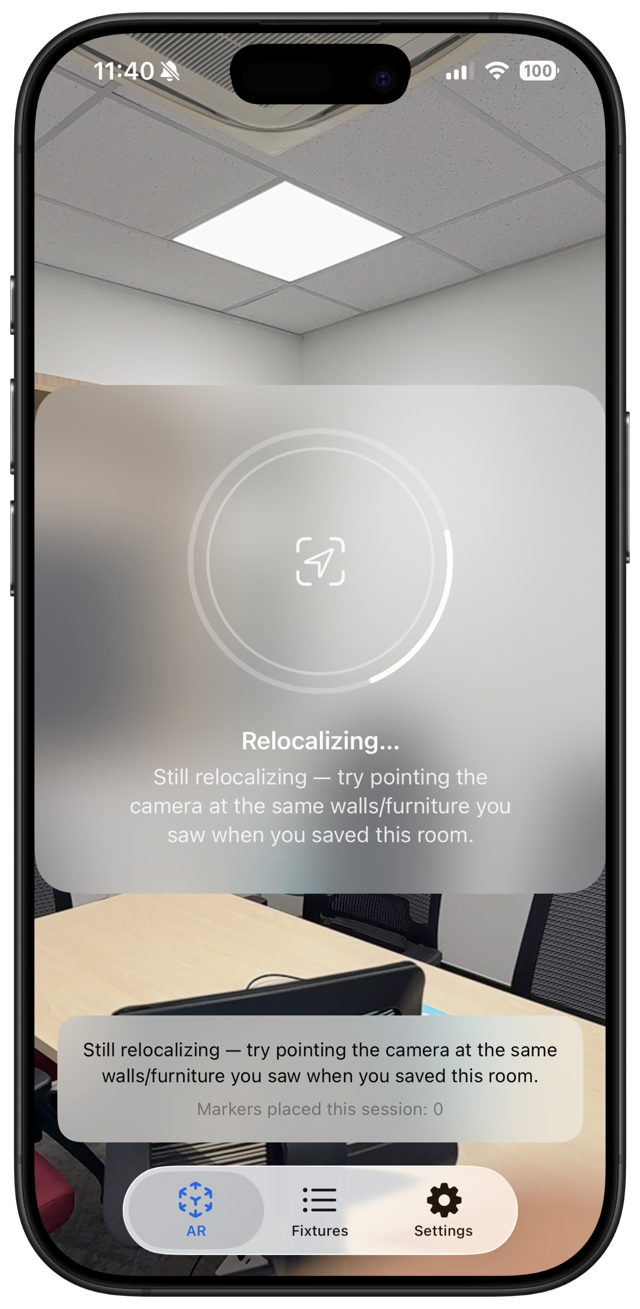
Each time you open the AR tab, Husvarde asks you to confirm which room you're standing in before it tries to recognize the space. That check is there so it doesn't spend twenty seconds looking for a kitchen you're not actually in. You can name or rename rooms from that screen.
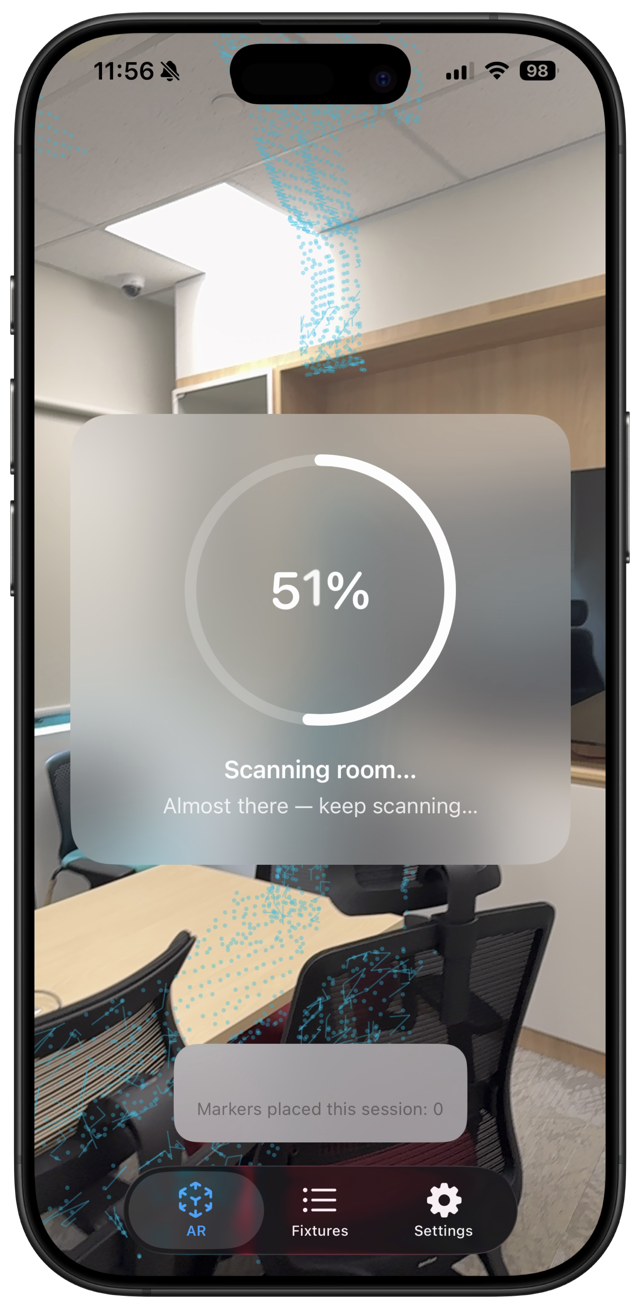
The first time you use AR in a room, Husvarde needs to scan it — point your device slowly around the space (walls, ceiling, furniture) until the progress ring fills and turns into a checkmark. This scan is what lets the app remember exactly where you tap.
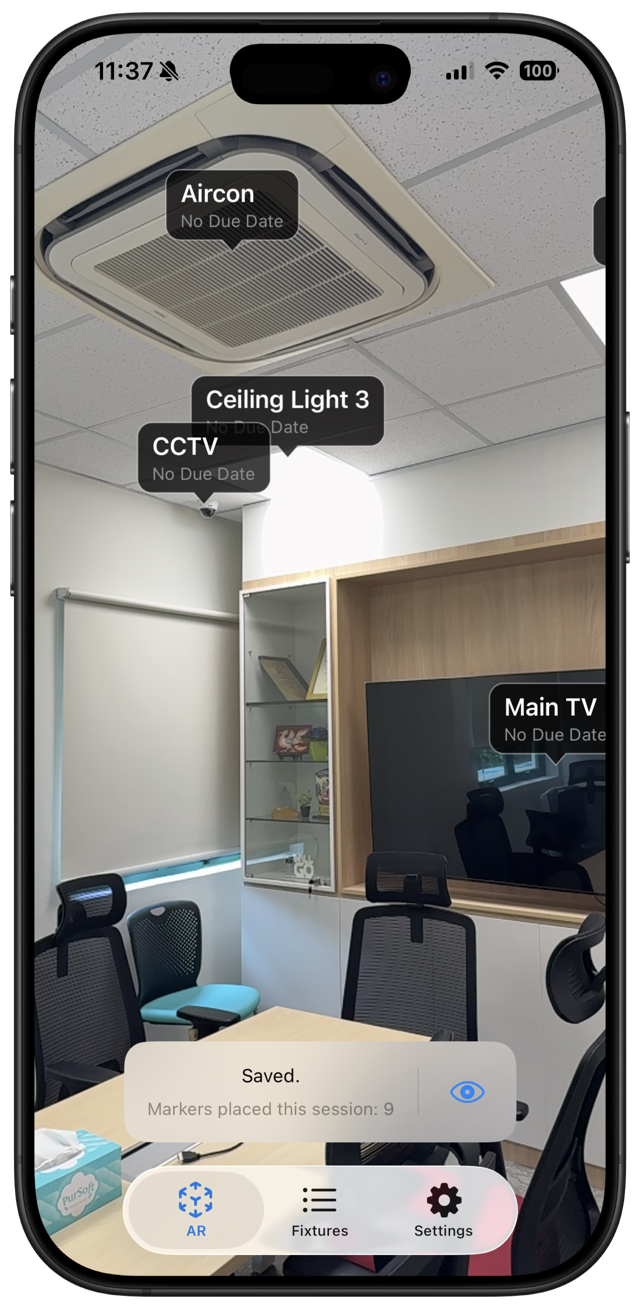
Once scanning is done, tap any real object — a light fixture, an air conditioning unit, anything — to drop a marker there. For fixtures that are hard to reach, aim the on-screen reticle and tap Place Marker instead. Tap an existing marker to see its name and status right in the camera view. On a fixture's detail page, a tagged location shows as "Anchored in:" followed by the scanned room's name — and if the fixture doesn't already have a room label, that name is suggested automatically.
A camera-viewfinder button in AR saves a snapshot of your tagged fixtures straight to Photos.
Adding another room
To tag fixtures somewhere else, add a new room and scan it the same way — then name it so you can tell it apart. Each scanned room is saved on its own — starting a new one doesn't clear rooms you've already mapped, and it never touches the fixtures, history, or notes in your list.
Setting Maintenance Reminders
Every fixture can have a maintenance date — the day you'd next like to service it. Set one from the fixture's detail page, and Husvarde will show its status color based on how close that date is.
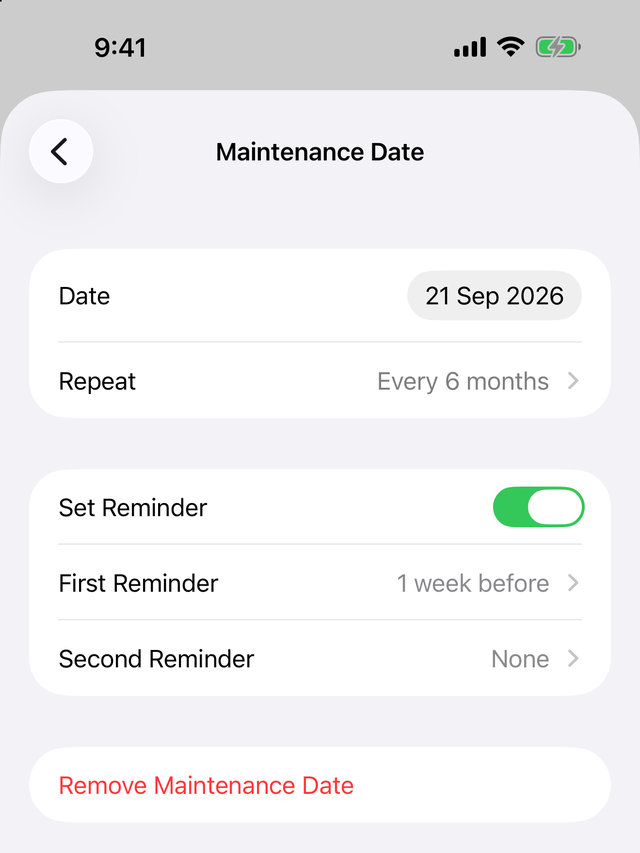
Turn on reminders and you can set up to two notifications ahead of the date — for example, one a week before and a second the day of. Each reminder can be timed independently, and the second one can be turned off entirely if you only want one nudge.
A maintenance date is one-time by default: logging a service on a fixture clears it, so you decide when to set the next one. If a fixture needs the same upkeep on a schedule, you can set it to repeat instead.
Repeating maintenance
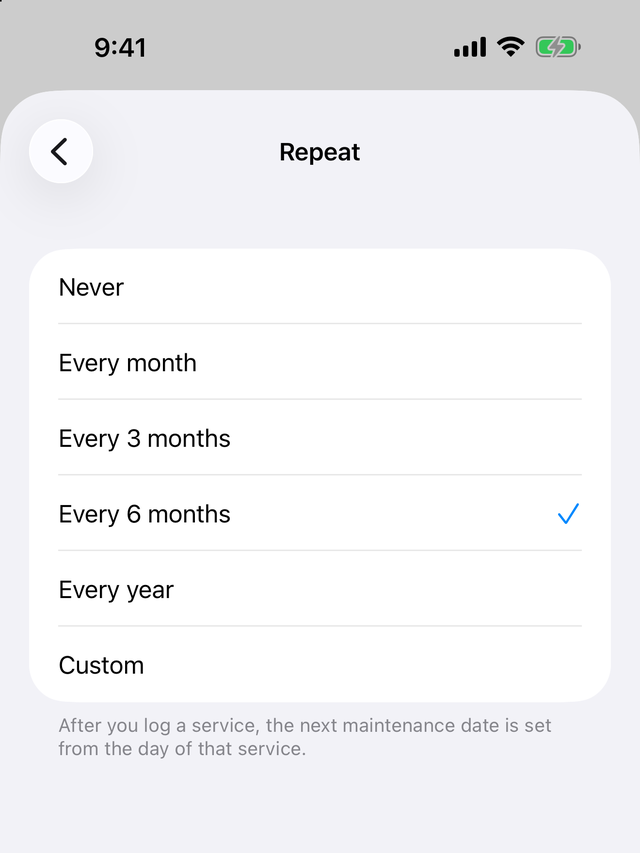
On a fixture's Maintenance Date page, tap Repeat and choose every month, every 3 months, every 6 months, every year, or set your own — every so many days, weeks, months, or years. Repeat is off by default.
When you log a service on a repeating fixture, Husvarde sets the next maintenance date for you, counted from the day the work was actually done. If the service ran late, the next one isn't due on the old schedule — it's due one interval after the day you did it. The form shows you the new date before you save, and your reminder settings carry over to it.
Husvarde only moves a date when you log a service. If you don't, the fixture stays overdue until you do. Logging an older service — say, filling in history from last year — is recorded but never pulls the current due date backwards.
Home Screen widget
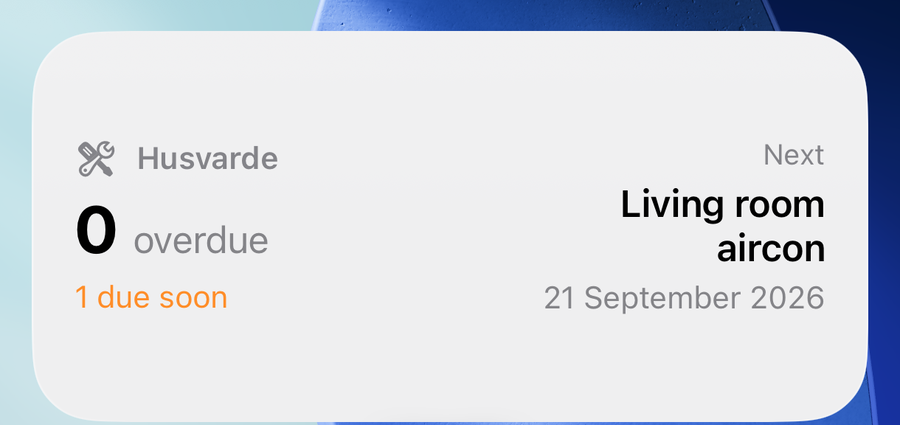
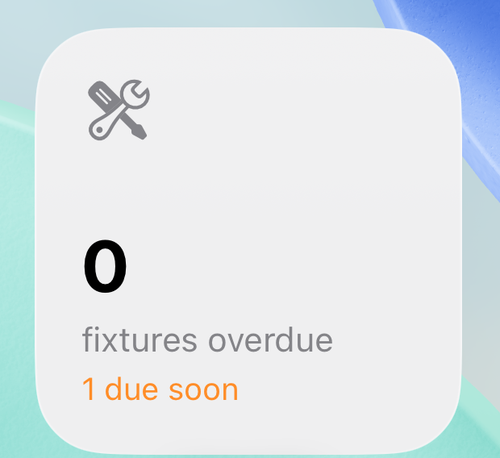
Add the Husvarde widget to see what needs attention without opening the app. Touch and hold an empty spot on your Home Screen, tap the plus button, search for Husvarde, and pick a size. The small widget shows how many fixtures are overdue and how many are due soon; the medium widget also shows the next upcoming reminder.
Tap the widget to go straight to the fixture if only one needs attention, or to your fixture list if several do. It keeps itself current — a fixture that passes its date turns overdue at midnight even if you haven't opened the app — and it refreshes when you open Husvarde. Because iOS decides how often widgets can update in between, a change you make may take a little while to show up. The widget works the same on the free version and the unlocked one.
Free vs. Unlocked
Husvarde is free to use for up to 20 fixtures, with full AR tagging included at no cost — AR isn't a paid feature.
If you need to track more than 20, or want to attach photos, videos, and documents to your fixtures, a single one-time purchase (~$4.99) removes the fixture limit for good, unlocks attachments, and turns on sync through your own iCloud account, so your fixtures, history, and attachments stay in step across your iPhone and iPad.
Everything else — history, AR tagging, reminders, repeating maintenance, warranty tracking, the Home Screen widget, and all 11 languages — is included free.
There's no subscription, no recurring charge, and no separate tier beyond this — you pay once, if you ever need to, and that's it.